
Notice: This page contains information which primarily relates to the Macintosh version of the software. The content may make reference to features which have not yet been implemented in Windows, and so should not be used to determine the full feature set of the Windows version. If you are curious about the software and would like to see what its capabilities are, you are invited to take advantage of our 30-day free trial.
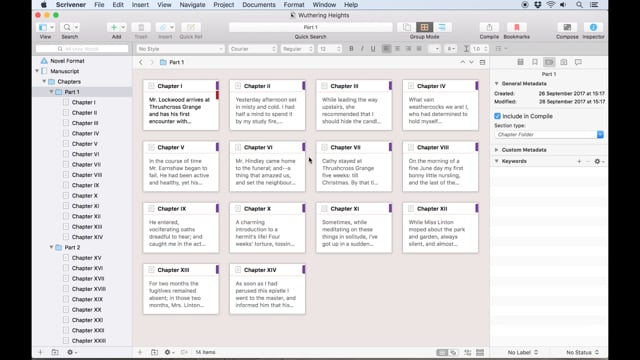
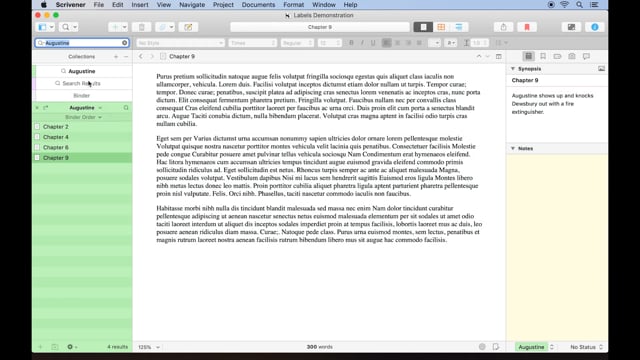
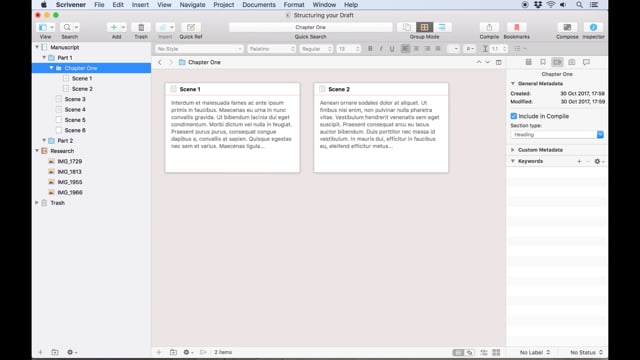
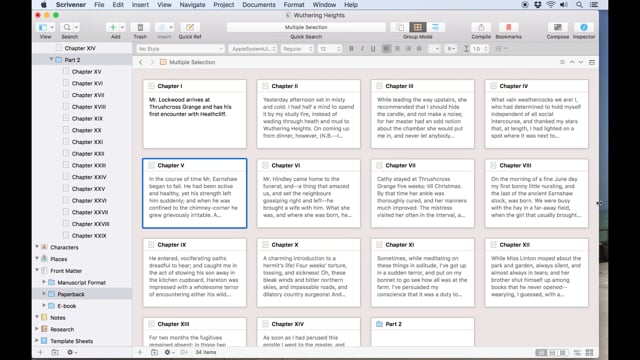
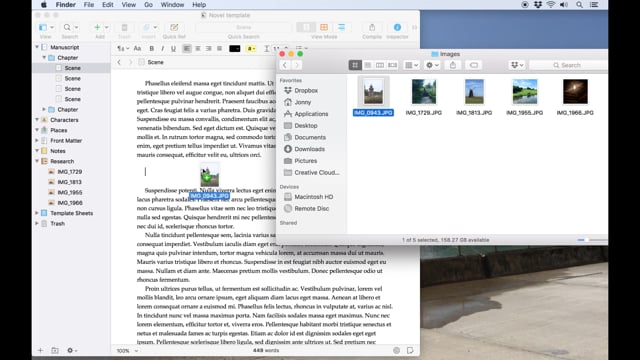
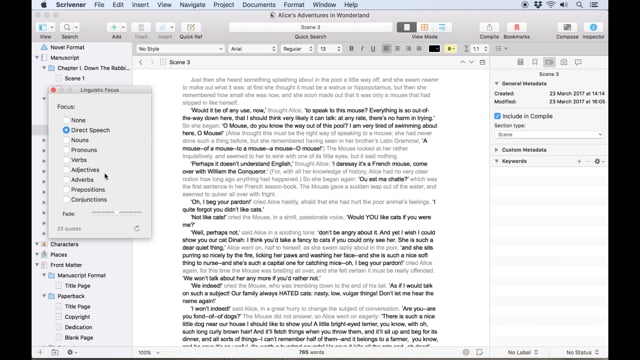
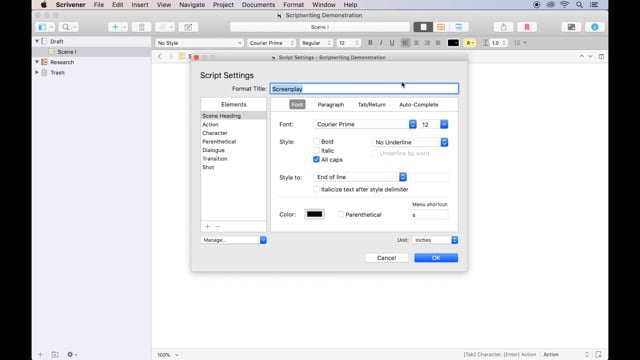
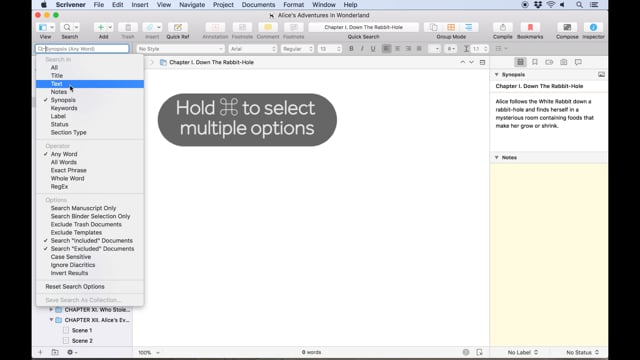
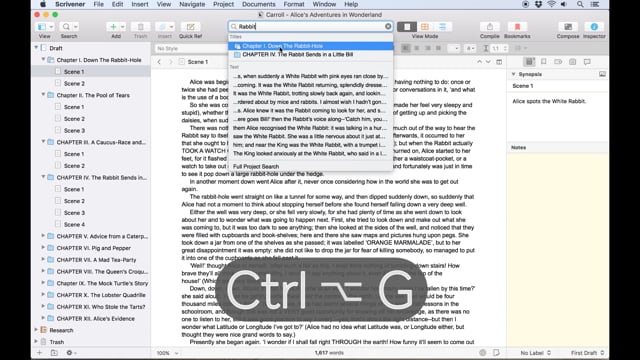
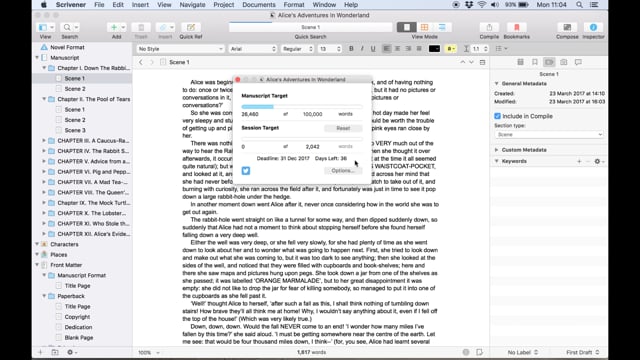
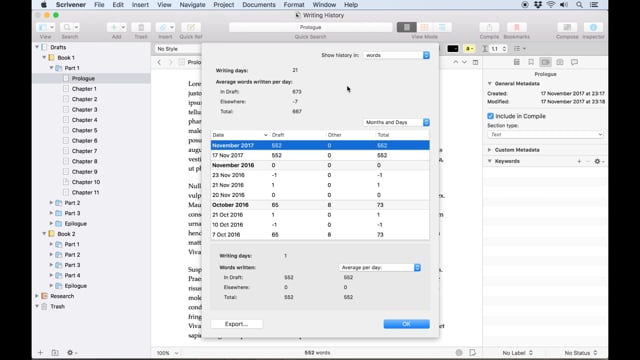
Get up and running with Scrivener. The videos presented below are designed to supplement Scrivener's interactive tutorial (Help > Interactive Tutorial) by providing visual demonstrations of some of the program's features.
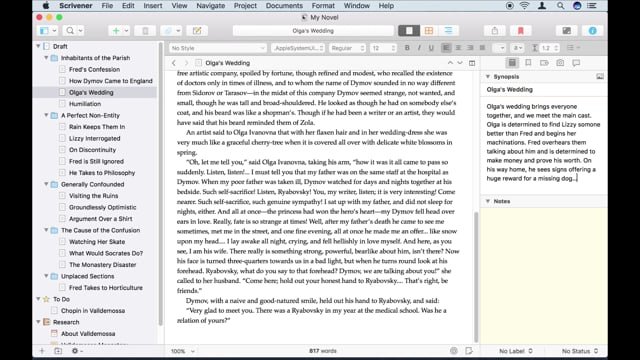
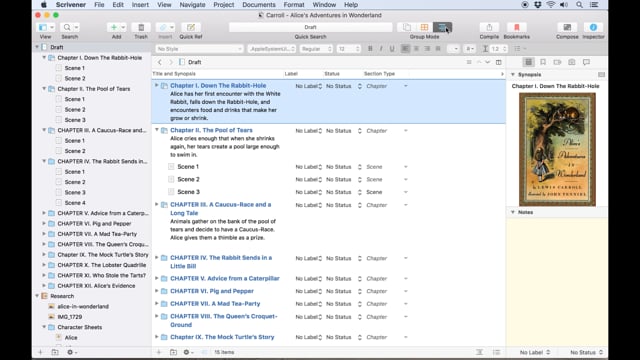
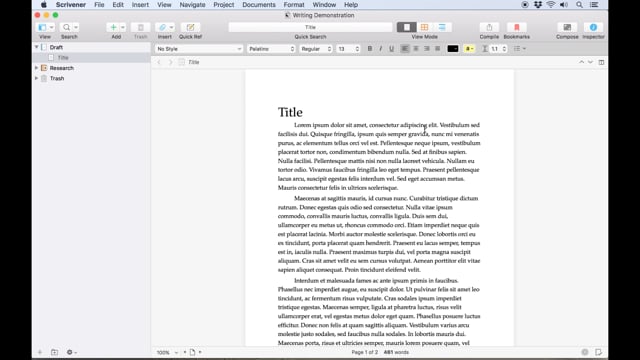
A ten-minute overview of Scrivener that covers all the main features. Recommended for those who just want to get up and running as quickly as possible.
We are pleased to sponsor a full ScreenCastsOnline episode, featuring Scrivener 2.0, available for everyone to view for free. In 35 minute presentation, Don McAllister goes over many of the basics, explores Scrivener’s organisational features, and finally demonstrates how to use all of these together to produce a final product from your writings. (Please note that the discount mentioned in this video was offered to ScreenCastsOnline viewers and has long since expired, sorry!)
[YouTube] (35m 39s)
Learn how to take "snapshots" of different versions of your documents, review revisions using the Compare feature, and restore earlier versions when you're unhappy with your edits.
See how Page View can present your text on a virtual page - or even two facing pages, for a book-like presentation - with the dimensions of your choice.
How to use Lion’s new full screen feature to maximise screen usage while still taking advantage of the standard interface.
A demonstration of Scrivener's new composition mode features, including customised backdrops and the ability to fade to the image.
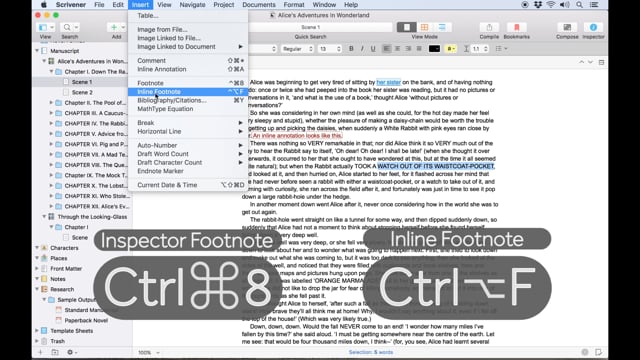
Learn how inspector footnotes and comments can be used to annotate your text.
Tutorial video covering using Scrivener with MathType to enter complex mathematical formulas into Scrivener's editor.
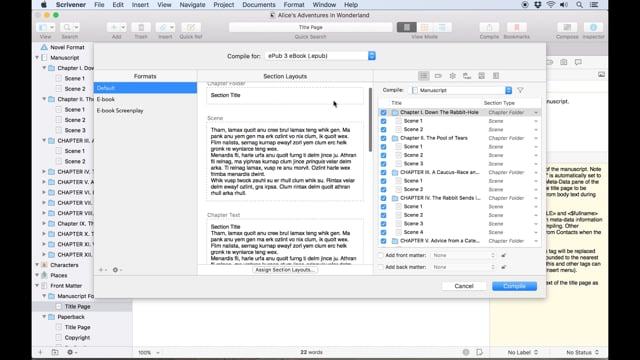
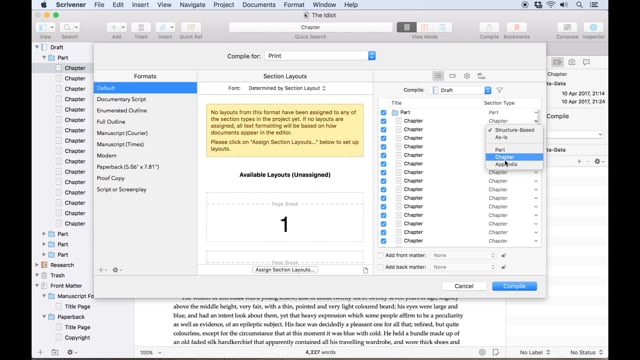
A basic introduction to the process of exporting your work into a file, ready for use in a word processor, web page, or even an e-book reader. Since Scrivener encourages you to write your work into sectional pieces in an outline or series of corkboards and index cards, compile is used to sew all of these smaller pieces together into one long document. This video will demonstrate the simple steps you can take to do so.
Continuing on with the introduction to the compile feature, this video demonstrates simple mult-format exporting from the same project. In a few steps, produce an e-book, submission format manuscript, or a PDF suitable for CreateSpace.
The compiler is also capable of producing reports and outlines. In this episode we examine one way to create a structured outline from all of the pieces in the draft (similar to the provided "Enumerated Outline" preset that ships with Scrivener).
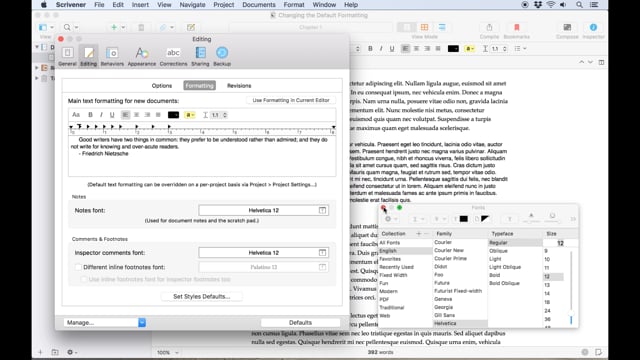
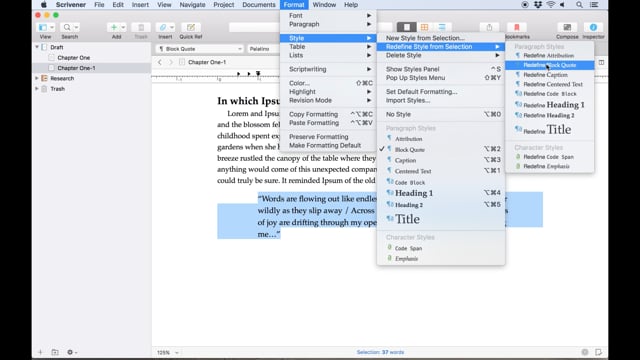
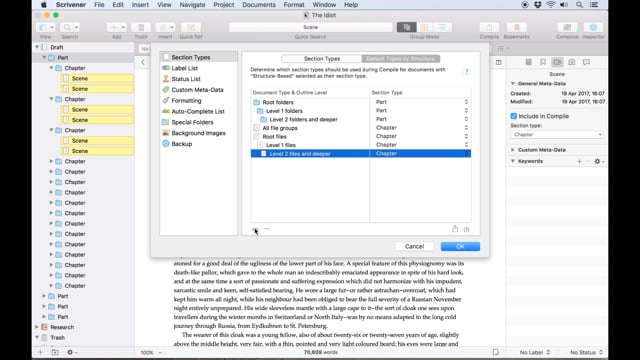
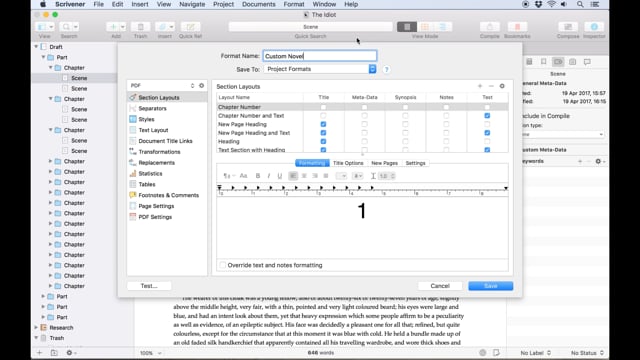
While the wide array of built-in formats can save a lot of time, sometimes you need to design a look and feel for your work from the ground up. This extended tutorial on compile output design covers the steps necessary to do so.
Take a quick visual tour of this vast database of international names to create character names or pseudonyms in seconds.
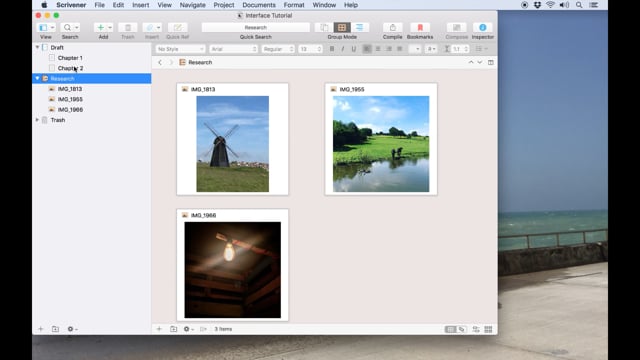
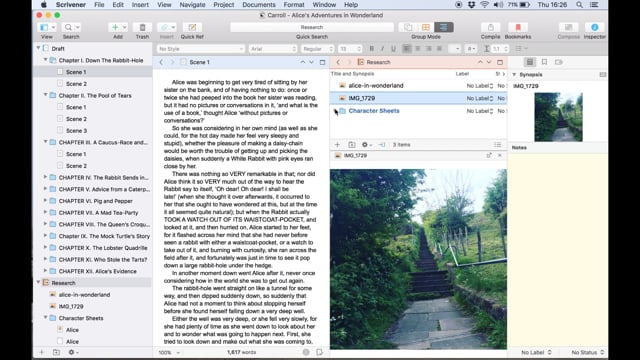
See how to open and manipulate additional material from your project in floating windows alongside your work.
A short demonstration of this editing tool, useful for tasks such as marking changes for editors and collaborators.
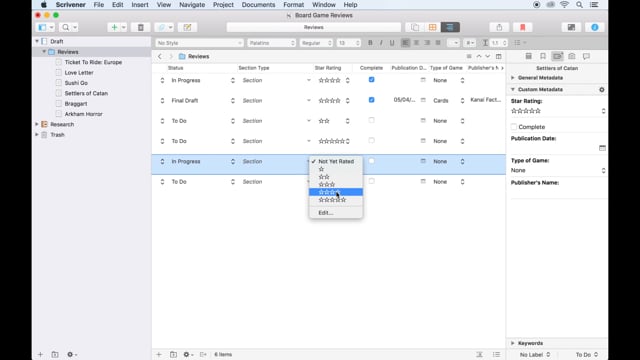
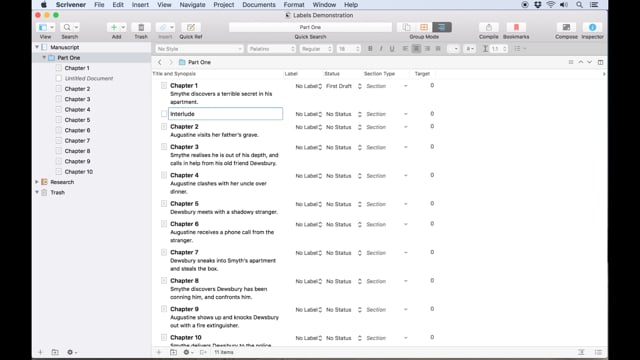
A quick guide to creating custom outliner columns and meta-data, which allow you to keep track of diverse information no matter what the demands of your particular project.
Learn how to use Scrivener's Compile feature to export your manuscript directly to Kindle or ePub format for reading or self-publishing.
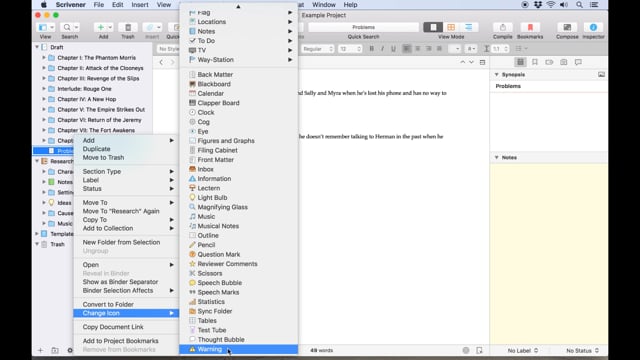
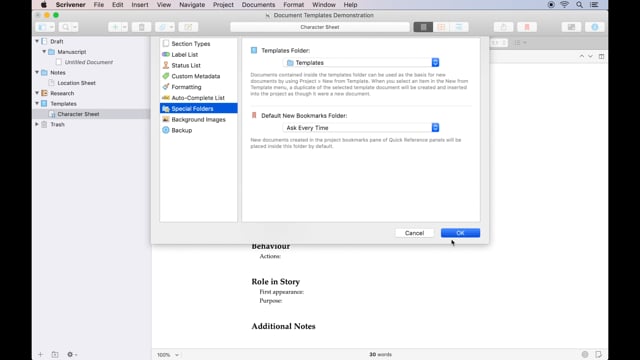
Learn how to create custom document templates within your project, and how to assign custom icons to your files and folders for easy reference.
Featuring Dragon Dictate, this video describes how to use speech controlled and dictation software with Scrivener.
A demonstration of how to use Scrivener's external folder sync feature with Dropbox, allowing you to share project contents with mobile devices and collaborators using other software.
Working on the go using an iPad or iPhone? Learn how to sync text with Scrivener using Simplenote.
See how to utilise the Collections feature in Scrivener to take synopses and document titles to and from Index Card on the iPad, for restructuring your project wherever you are.